
Command line
Completion requirements
You
can manage your project in the console or via
the command line.
Install ose3client
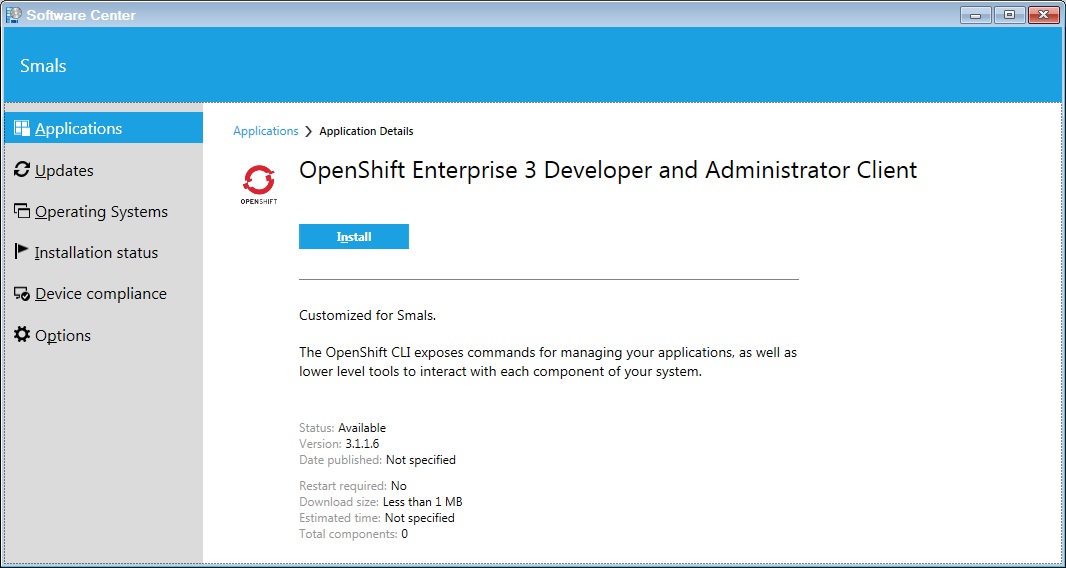
To use the CLI, you must install ose3client.
The ose3client is installed in C:\dev\common\ose3client. This application is available in the Software center.
You can use oc command to show the help.
ocThe result in a DOS cmd prompt :

Authentification
First, you must log on Openshift with your LDAP scloud user.
oc login https://paas.gcloud.belgium.beExercise :
I propose you to play with the command line. You can use the documentation (https://www.gcloud.belgium.be/doc/PAAS/CLI/).
- Show list of your projects in Openshift
- Go to the socsec-test-trainings
- Show dc list
- Show route list
- Show service list
- Show detail of the dc of hellostco
- Edit dc of hellostco
- Show list of user of project socsec-test-sda
- Add a user with the username [youruser]2
- Show list of user of project socsec-test-sda
- Delete user [youruser]2
Solution :
- oc get projects
- oc project socsec-test-trainings
- oc get dc
- oc get route
- oc get service
- oc describe dc trainings-hellostco
- oc edit dc trainings-hellostco
- oc describe policyBindings :default
- oc policy add-role-to-user view smals-stco2
- oc describe policyBindings :default
- oc policy remove-user smals-stco2
- oc get projects
- oc project socsec-test-trainings
- oc get dc
- oc get route
- oc get service
- oc describe dc trainings-hellostco
- oc edit dc trainings-hellostco
- oc describe policyBindings :default
- oc policy add-role-to-user view smals-stco2
- oc describe policyBindings :default
- oc policy remove-user smals-stco2
Last modified: Thursday, 16 March 2017, 8:16 AM